How to Create a Tally Counter in Excel
Learn how to create a tally counter in Excel with simple step-by-step instructions, formulas, and examples. Build your counter in minutes.
Count Verse Team
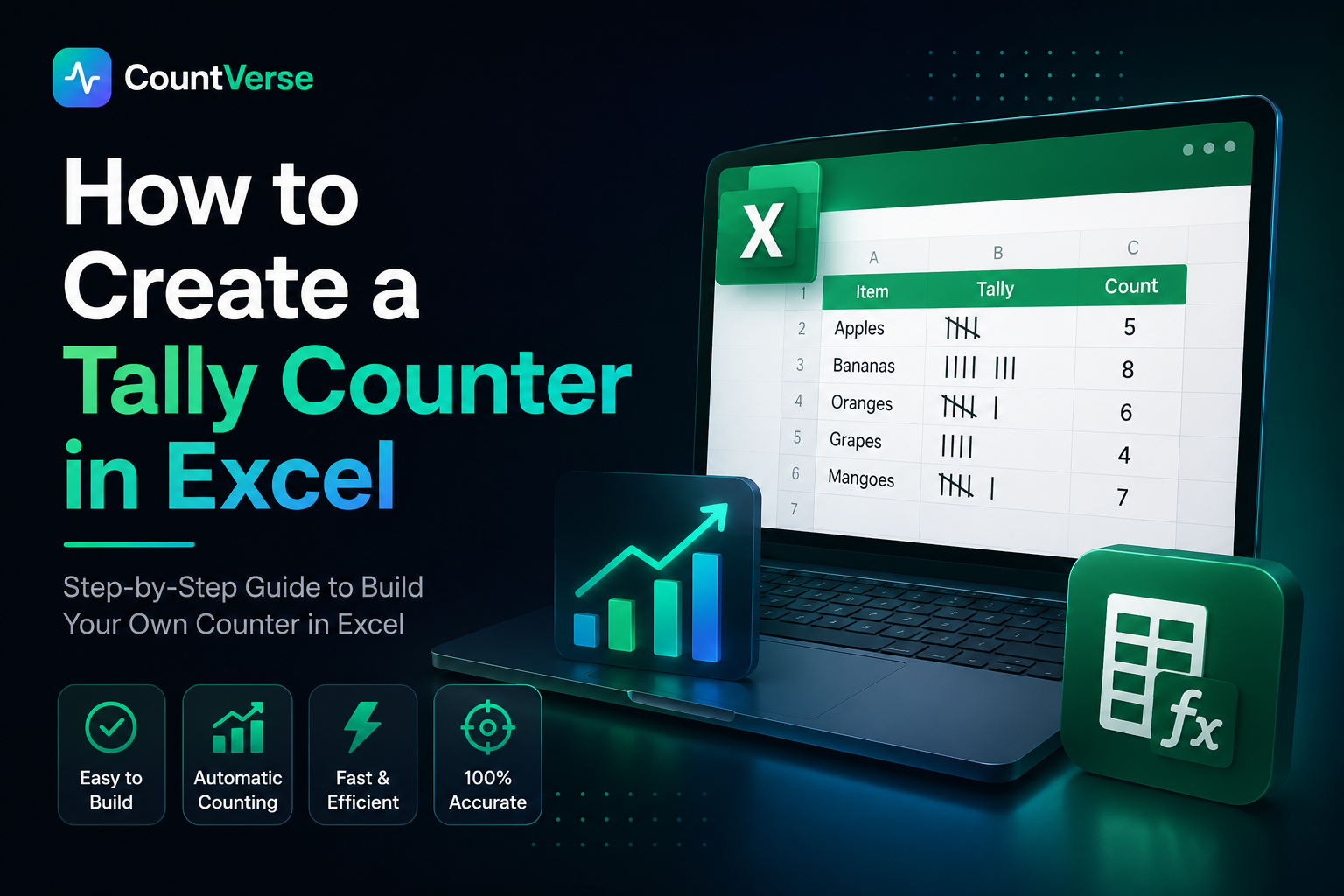
Sometimes keeping count of things manually can become confusing especially when numbers keep increasing throughout the day. Whether you are tracking attendance counting products, managing survey responses or recording workout reps, a tally counter can make the process much easier
Many people use Excel for this because it is simple, flexible and already available on most computers. You can create a basic tally counter with just a few steps using formulas, buttons or simple spreadsheet features.
In this guide you will learn how to create a tally counter in Excel step by step along with some easy ways to make it more useful and organized.
How to Create a Tally Counter in Google Sheets
Google Sheets is another simple option for creating a tally counter especially for people who prefer working online. It does not require software installation and your counter can be accessed from different devices anytime. Many users also like Google Sheets because it makes sharing and updating counts much easier.
Using Checkboxes
One of the easiest ways to create a tally counter in Google Sheets is by using checkboxes. Every time a checkbox is selected it can be counted automatically inside the sheet. This method works well for attendance lists, task tracking surveys and other simple counting tasks.
Using Simple Formulas
Google Sheets also allows you to create tally counters with basic formulas. You can use formulas to count selected cells, track totals or update numbers automatically when data changes. This is useful for people who want a clean counter setup without using complicated tools or coding.
If you prefer counting on your phone instead of spreadsheets, check out our guide on the Best Tally Counter App for Android to find a faster and more convenient solution.
What Is a Tally Counter in Excel?
A tally counter in Excel is a simple way to keep track of numbers inside a spreadsheet without counting everything manually again and again. Instead of writing marks on paper Excel lets you record and manage counts digitally which makes the process faster and more organized. People often use tally counters in Excel for daily tasks where numbers change frequently throughout the day.
For quick counting without Excel, use our free online counter tool and keep track of numbers with a single click.
How Tally Counting Works
Tally counting in Excel is actually very simple. Every time you add a value, click a button or mark a checkbox the total count increases automatically. Some people use basic formulas for this while others create buttons to make counting faster and easier. This saves time and also helps avoid counting mistakes.
Common Uses of Tally Counters
People use tally counters for many everyday tasks. For example schools use them for attendance, shops use them for stock counting and event teams use them to track visitors. They are also helpful for workout tracking, surveys and other situations where quick counting is needed regularly.
Excel vs Google Sheets Tally Counter
Both Excel and Google Sheets can be used to create tally counters but the experience is not exactly the same. Some users prefer Excel for its advanced features while others choose Google Sheets because it is easier to access online and works well for shared tracking.
Main Differences
Excel is mainly used as desktop software, while Google Sheets runs directly in a web browser. Excel gives more control with advanced tools and customization options. Google Sheets is more convenient for online access and real-time sharing with other users.
Which One Is Easier to Use?
Google Sheets is usually easier for beginners because the setup is simple and everything saves automatically online. Excel may take a little more time to learn especially when using advanced features but it offers more flexibility for custom tally counters.
Improve Your Tally Counter
After creating a basic tally counter you can make it more useful with a few simple improvements. Small changes like adding reset options, colors or extra counters can make the spreadsheet easier to use and better for daily tracking tasks.
Add a Reset Button
A reset button helps clear the count quickly whenever you want to start again from zero. This is useful for daily attendance, workout tracking, or other tasks where the count changes regularly. It also saves time because you do not need to edit numbers manually each time.
Use Conditional Formatting
Conditional formatting makes the counter easier to read by highlighting important numbers automatically. For example, Excel or Google Sheets can change cell colors when the count reaches a certain value. This helps users notice updates faster while keeping the spreadsheet more organized.
Create Multiple Counters
Sometimes a single counter is not enough, especially when tracking different categories at the same time. Creating multiple counters allows you to manage separate counts in one sheet without mixing the data. This works well for inventory tracking, surveys, classroom activities and similar tasks.
Common Problems and Fixes
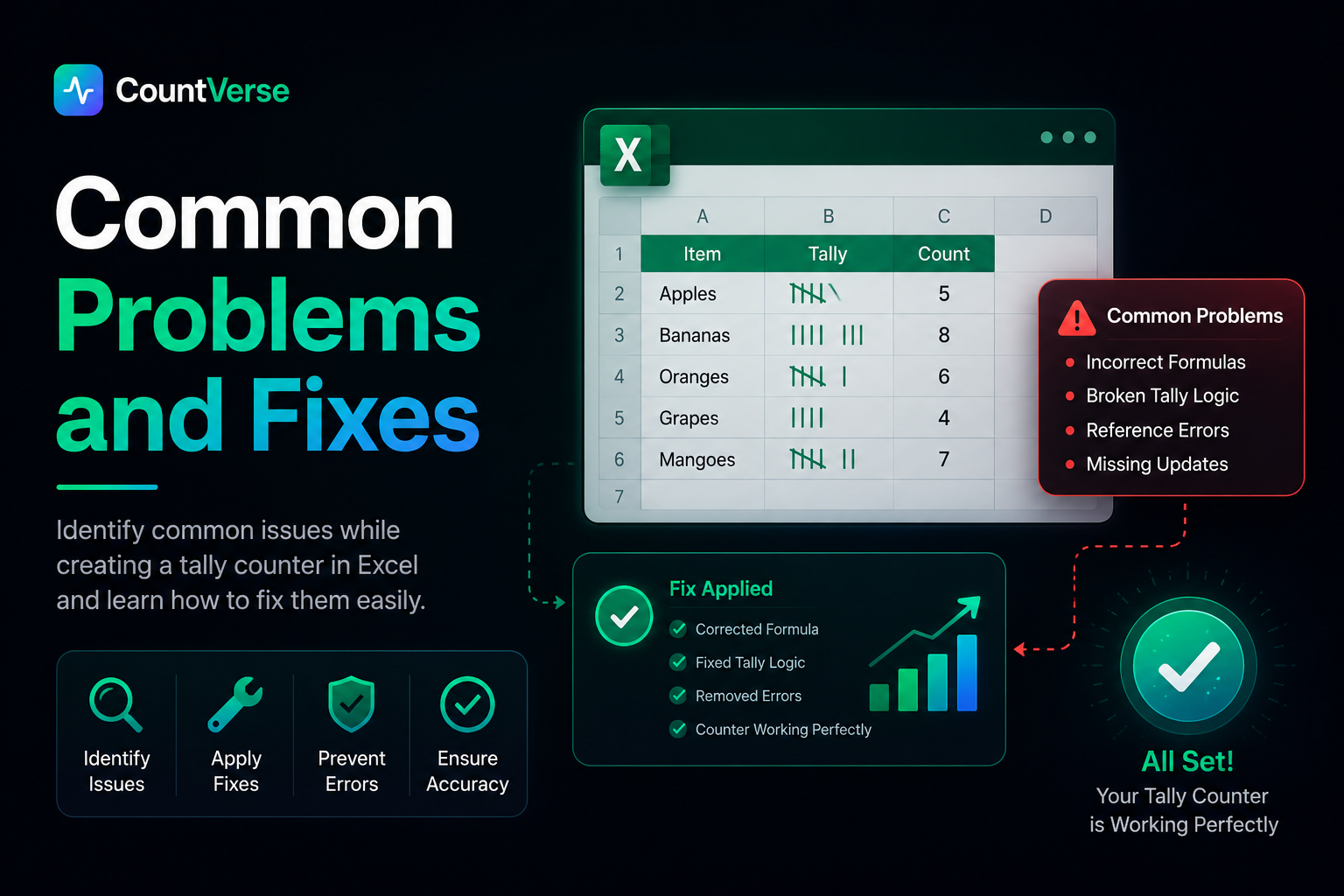
While creating a tally counter, small issues can sometimes appear during setup. Most of these problems are easy to fix and usually happen because of formulas, buttons or spreadsheet settings. Understanding these common issues can help keep your counter working smoothly.
Counter Not Working
Sometimes the counter may stop updating when the button is clicked or data is entered. This usually happens because the button is not connected correctly or the counting setup is incomplete. Checking the button settings and linked cells often solves the problem quickly.
Formula Errors
Formula mistakes are common when creating tally counters for the first time. A small typing error or incorrect cell reference can stop the counter from updating properly. Reviewing the formula carefully usually helps fix the issue.
Macro Issues
Macros may not work if they are disabled in Excel settings or added incorrectly. In some cases, Excel blocks macros for security reasons. Enabling macros and checking the VBA code can help the tally button work correctly again.
Excel and Google Sheets Limitations
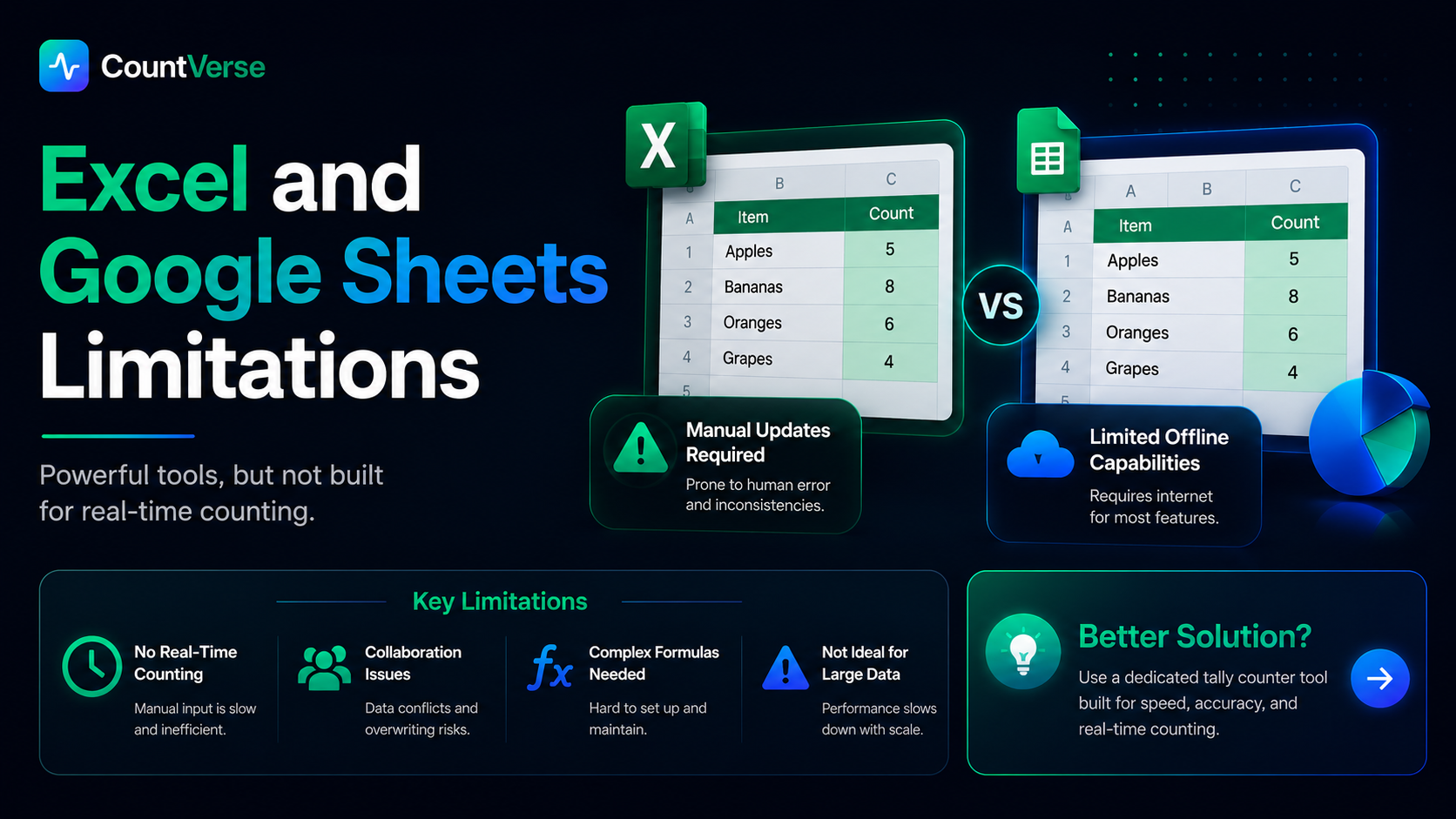
Excel and Google Sheets are useful for basic tally counting but they also have some limitations. As the counter becomes larger or more advanced, managing everything inside a spreadsheet can become less convenient for some users. This is why many people eventually look for faster and simpler counting solutions.
Manual Setup
Creating a tally counter in a spreadsheet takes time because everything needs to be set up manually. Users often have to add formulas, buttons, labels and formatting before the counter works properly. For beginners this process can sometimes feel confusing.
Mobile Limitations
Although both Excel and Google Sheets work on mobile devices the experience is not always smooth for tally counting. Small screens can make buttons harder to manage and editing spreadsheets on mobile may take longer compared to desktop use.
VBA Complexity
Some Excel tally counters use VBA code to automate counting features. While VBA can make the counter more powerful it may also feel difficult for users who are not familiar with coding or Excel macros.
A Simpler Alternative to Spreadsheet Counters
Excel and Google Sheets can handle basic tally counting but they are not always the fastest option for quick daily use. Setting up formulas, buttons or macros can take extra time especially for users who only need a simple and ready-to-use counter.
Tools like CountVerseApp are designed specifically for tally counting which makes the process much easier. Instead of managing spreadsheets manually, users can create counters quickly, track counts more smoothly and access everything from different devices without dealing with complicated setup steps.
For people who regularly count attendance, inventory, workouts or daily activities a dedicated tally counter tool can save time and make tracking more convenient.
Frequently Asked Questions
How do I add a counter in Excel?
You can add a counter in Excel by creating a cell that updates whenever a value changes or a button is clicked. Some users use simple formulas, while others create buttons with macros for faster counting.
How do I auto tally in Excel?
You can auto tally in Excel by using formulas, macros or VBA code that increases the count automatically when data is added or a button is clicked.
How do I insert a counter in Google Sheets?
You can insert a counter in Google Sheets by using checkbox formulas or simple counting functions inside the spreadsheet.
Can you tally checkboxes in Google Sheets?
Yes Google Sheets can count selected checkboxes automatically. This feature is commonly used for attendance tracking, task management and survey lists.
How to make Excel count automatically?
Excel can count automatically by using built-in formulas, macros or linked buttons. Once the setup is complete the spreadsheet updates the total count without needing manual calculations.
Final Thoughts
A tally counter can make everyday counting much easier especially when you are working with large numbers or repeated tasks. Excel and Google Sheets both give you simple ways to track counts without doing everything manually.
If you only need basic counting, spreadsheets can work well for daily use. But if you want something faster and easier to manage using a dedicated tally counter tool may save more time and effort.
The best option is the one that helps you count quickly, stay organized and avoid mistakes during your work.